Building a network
Annotation mode
Annotation mode puts a transparent layer over the drawing to write and draw by hand: words, arrows, circles, ticks and crosses. The annotations are seen only while the mode is on, in the design and in the presentation.
Annotation mode puts a transparent layer over the drawing, as on a whiteboard: a word next to a switch, an arrow to the link that matters, a circle around the server everything depends on, a tick, a cross. What you write there are the annotations of the board. They are for whoever reads the drawing: the network does not read them. Not to be confused with the notes of a device, which are written in its window.
You enter the mode as you enter presentation mode, and leave it the same way. Only while it is on are the annotations seen, and only then can you write. Reading and writing belong to the same mode: when it is off the board is clean, with the devices, the cables and the areas alone.
Entering and leaving
Press “Annotation mode”, the button with the marker on the menu bar, next to “Present”; or choose View → “Annotation mode”; or press A. Its tools appear over the top of the board, and the button stays dark while the mode is on.
While the mode is on, the left button writes: nothing is selected, moved or joined, and the right button opens no menu. A pen, or a finger on a touch screen, writes too. The right button still drags the view, and the wheel still zooms. The panels at the side stay usable: you can run a ping from “Simulation” with the annotations in view, and the packet travels under them.
To leave, press the button again, or A, or Esc, or “Leave annotation mode” at the end of its tools. Off, the annotations are not drawn and nothing can be written: the board is clean. They are not lost: they are kept with the board, and come back the next time the mode is turned on.
While the mode is off and the board has annotations, the button shows how many there are, in a small square on the button, and the View entry has the number after its name too, so that notes out of sight are not forgotten. It is gone while the mode is on, and when there are none.
The tools
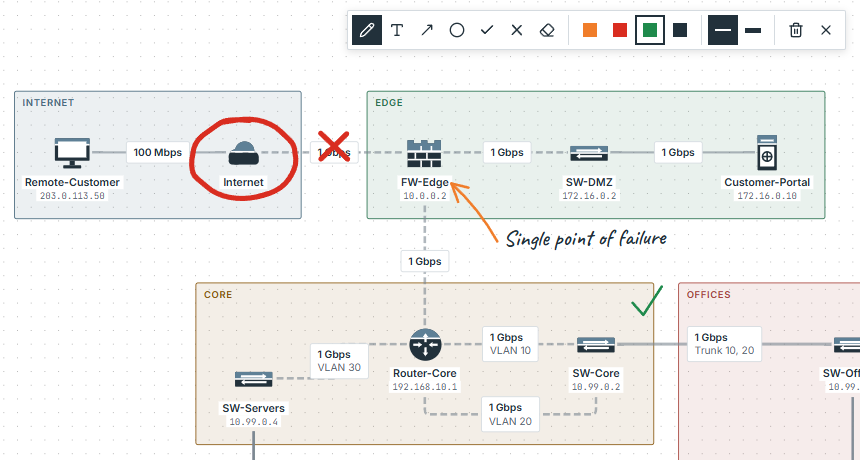
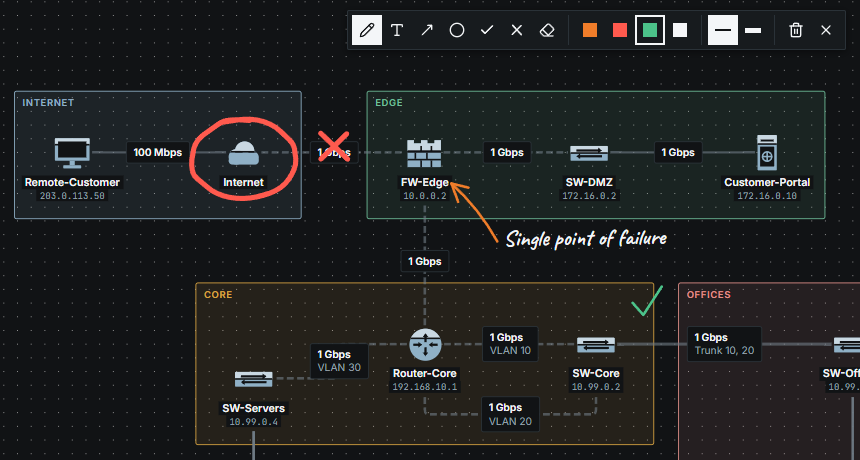
- “Pen”: a line by hand, wherever the pointer goes.
- “Text”: click where the words go, type them and press Enter. Shift + Enter starts a new line, Esc gives the words up, a click elsewhere keeps them. They are written in a handwriting, Caveat.
- “Arrow”: from where the button is pressed to where it is let go, with its head there.
- “Circle”: a ring around the box the pointer drags, drawn as a hand draws it, a little past where it started.
- “Tick” and “Cross”: drag the box they fill, or click to place one of a fixed size.
- “Eraser”: drag it over the annotations to take away. Each one it touches fades, and goes when the button is let go: always a whole annotation, never a piece of one.
Next to the tools, the colour: “Orange”, the orange of PixelCake, “Red”, “Green” and “Ink”, the colour of the text, dark in the light theme and light in the dark one. Then the thickness, “Thin” or “Thick”; for words, small or large. The choice holds for the next annotations; one already written keeps its own.
The lines have a slight wobble, as by hand. It is worked out from the annotation itself, so it looks the same on every screen, after a reload and in the exported image.
Clearing the board
“Clear all”, the bin among the tools, takes every annotation of the board away, after a question in a window of the app: “Clear every annotation on the board?”. “Clear” takes them away; “Cancel” or Esc leaves them. Devices, cables and areas stay. The button is off while nothing is written.
On the board and in the file
The annotations belong to their board, as the areas do:
- they are kept in this browser as soon as they are written, and are there after a reload;
- they stay with the board when you go to another board of the project and back;
- they are saved in the project file, with their board, in the
marksfield (Project file), whether the mode is on or off; - the copy of a board made with “Duplicate board” has them too, and from then on each has its own;
- the exported image draws them only while the mode is on, over everything else, in the light theme and in the dark, with the words in the handwriting: what you see is what you export. With the mode off the picture has none, and the window says so (Exporting an image).
The YAML export does not carry them: the YAML is the network alone. A sample network loaded on the board, or a YAML file imported in place of the drawing, takes them away with the drawing they were written on.
An annotation is drawn over the devices and the cables, at the place of the board where it was written. It does not follow a device: a device moved, or the automatic layout, leaves the annotations where they were. Writing and erasing are changes of the board like any other: Ctrl + Z takes them back.
While presenting
Presentation mode has the same mode, with the same sheet. It starts off, so the audience sees the clean drawing; press “Annotation mode” on the bar of the presentation, or A, and the annotations prepared before the meeting appear, ready to be added to. What you write during the presentation goes on the same sheet and stays there until you erase it. The button shows how many annotations are hidden while the mode is off.
Esc leaves the mode first, and a second Esc leaves the presentation. While the mode is on, a click on a device writes instead of opening its menu: turn it off to ask a question or to simulate a failure, and on again to write. Nothing can be selected or moved while presenting, with the mode on or off. Undo does not work while presenting, as for everything else: what you wrote during the presentation is taken back with Ctrl + Z after leaving it, or erased with the eraser.
Limits
Limits
- An annotation cannot be moved, resized or edited: rub it out and write it again.
- Words are written in one handwriting, in two sizes. In the exported image the handwriting has the letters of the languages of Western Europe; other letters are written in a handwriting of the computer.
- The tools have no keys of their own: they are chosen on the bar of the mode.
- The small map does not show the annotations, and “Fit to window” fits the devices: an annotation far from them can be outside the view.